
The UO Events Calendar is the official source for what’s happening at the University of Oregon, provided as a service by University Communications. If you are planning an event, share it with the community by logging in and using the online submission form. Many websites include event listings that are populated by feeds from the calendar. Following are some quick tips on getting the most out of this central resource. For more information, refer to the University Communications website.
Event Information and Descriptions
- Don’t repeat information in the description field that is found elsewhere in the listing, such as the date, time, and location.
- If your image includes any text (not recommended), be sure that information is also in the event description.
- Include as many details as possible, including links if appropriate.
- Be sure to include the phone number to request accommodations related to a disability.
- Calendar feeds on websites are based on filters selected: “Event Type,” “Department,” “Target Audience,” and “Group.” If you have questions about what filters to use, contact Student Life Strategic Communications.
- After you submit your event, it will be reviewed by calendar administrators in University Communications. Approval time for submissions is 48 hours. If you need to edit your event, it will go back into the new-submission queue.
Photo Guidelines
The submission form includes the ability to upload a photo. Below are tips for using a photo that works best for the various ways that your event might be displayed within the calendar.
- Use photographs whenever possible, avoiding text-heavy illustrations or graphics.
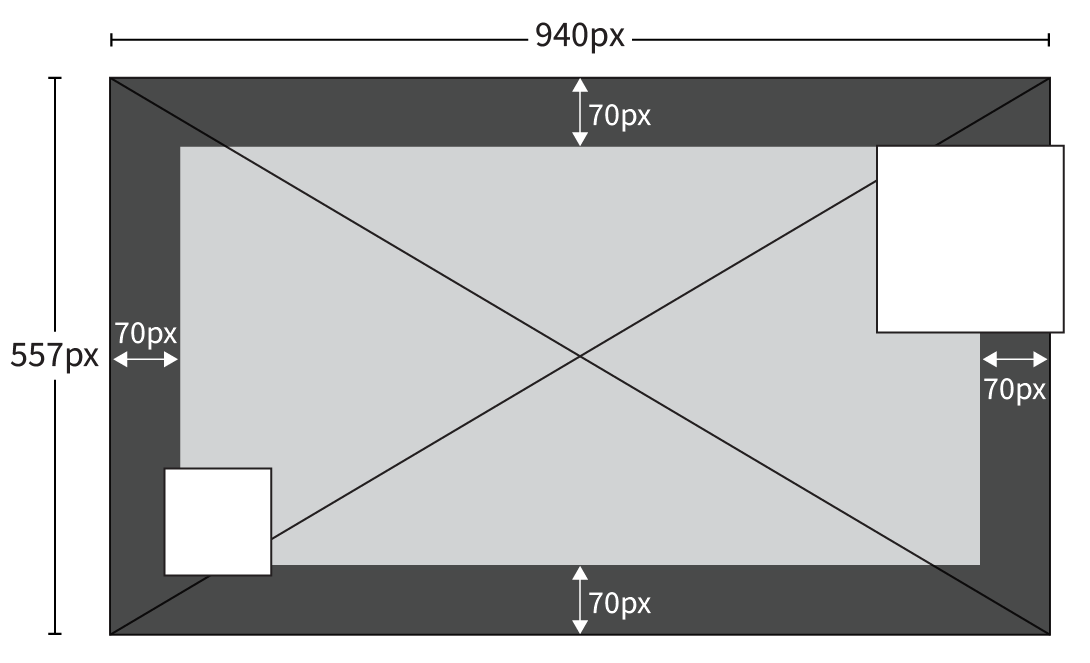
- For best results, upload a photo that is 940 pixels wide by 557 pixels high (PNG, JPG, or GIF).
- Your photo will be displayed in various ways depending on where a person is viewing it. Anything that appears along the margins of the photo—the dark gray area in the diagram above—will be cropped out in certain views. It is best to keep the important parts of the photo at least 70 pixels from all edges, creating the light gray “safe zone” in the diagram.
- On many department web pages that include calendar feeds, there will be a calendar date box overlapping part of the photo on the upper right corner on desktop view and the bottom left corner on mobile view—represented by the white boxes. Choose photos that don’t have important content in these areas to avoid being hidden.
- If your image isn’t the size recommended in Step 2, calendar.uoregon.edu can help you crop it to that size when you upload your image. Take care to make the best crop while keeping the guidance above in mind.
Using a poster image or slides intended for campus digital screens is not recommended. Formatting a photo specifically for the calendar may be a little extra work, but the result is worth it.